
Firewall, Malware Scanner, Two Factor Auth, and Comprehensive Security Features, powered by our 24-hour team. Make security a priority with Wordfence.

Two Factor
Hospedagem WordPress com plugin Two-Factor
Onde devo hospedar o plugin Two-Factor?
Este plugin pode ser hospedado em qualquer servidor que possua WordPress instalado. Recomendamos fortemente escolher um provedor de hospedagem confiável, com servidores adaptados para WordPress, como o serviço de hospedagem de sites da MCO2.
Hospedando o plugin Two-Factor em uma empresa de hospedagem de confiança
A MCO2, além de instalar o WordPress na versão mais atual para seus clientes, disponibiliza o plugin WP SafePress, um sistema singular que salvaguarda e melhora seu site conjuntamente.
Por que a Hospedagem WordPress funciona melhor na MCO2?
A Hospedagem WordPress funciona melhor pois a MCO2 possui servidores otimizados para WordPress. A instalação de WordPress é diferente de uma instalação trivial, pois habilita imediatamente recursos como otimização automática de imagens, proteção da página de login, bloqueio de atividades suspeitas diretamente no firewall, cache avançado e HTTPS ativado por padrão. São recursos que potencializam seu WordPress para a máxima segurança e o máximo desempenho.
O plugin Two-Factor adiciona uma camada extra de segurança ao seu login do WordPress, exigindo que os usuários forneçam uma segunda forma de autenticação além da senha. Isso ajuda a proteger contra acesso não autorizado, mesmo se as senhas forem comprometidas.
Instruções de configuração
Importante: Cada usuário deve configurar individualmente suas configurações de autenticação de dois fatores.
Para usuários individuais
- Navegue até o seu perfil: Vá em “Usuários” “Seu perfil” no painel administrativo do WordPress
- Encontre as opções de dois fatores: Role a tela para baixo até a seção “Opções de dois fatores”
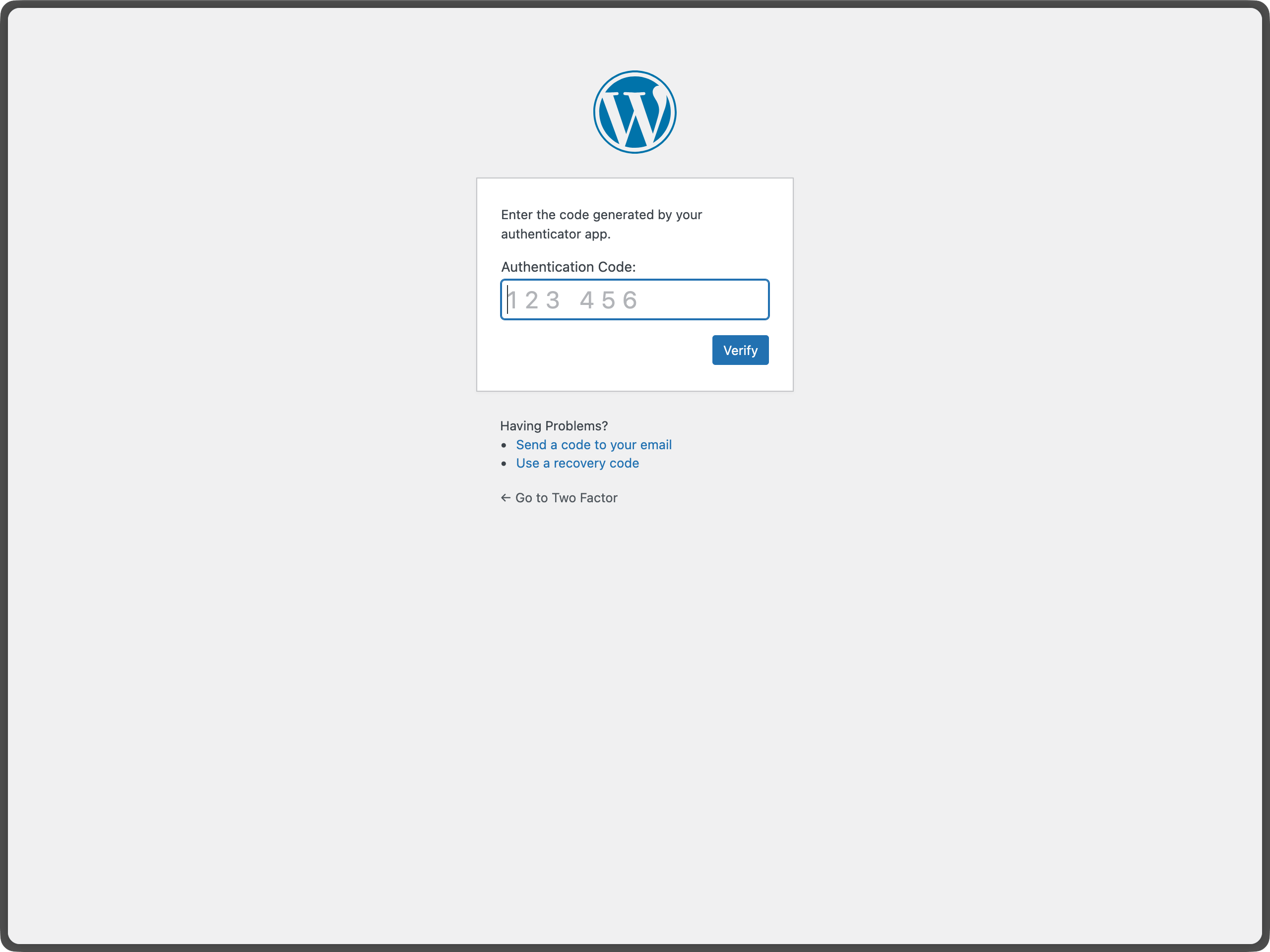
- Escolha seus métodos: Ative um ou mais provedores de autenticação (observando que o administrador do site pode ter ocultado um ou mais, portanto, o que está disponível pode variar):
- Aplicativo autenticador (TOTP) – Use aplicativos como Google Authenticator, Authy ou 1Password
- Códigos por e-mail – Receba códigos de uso único via e-mail
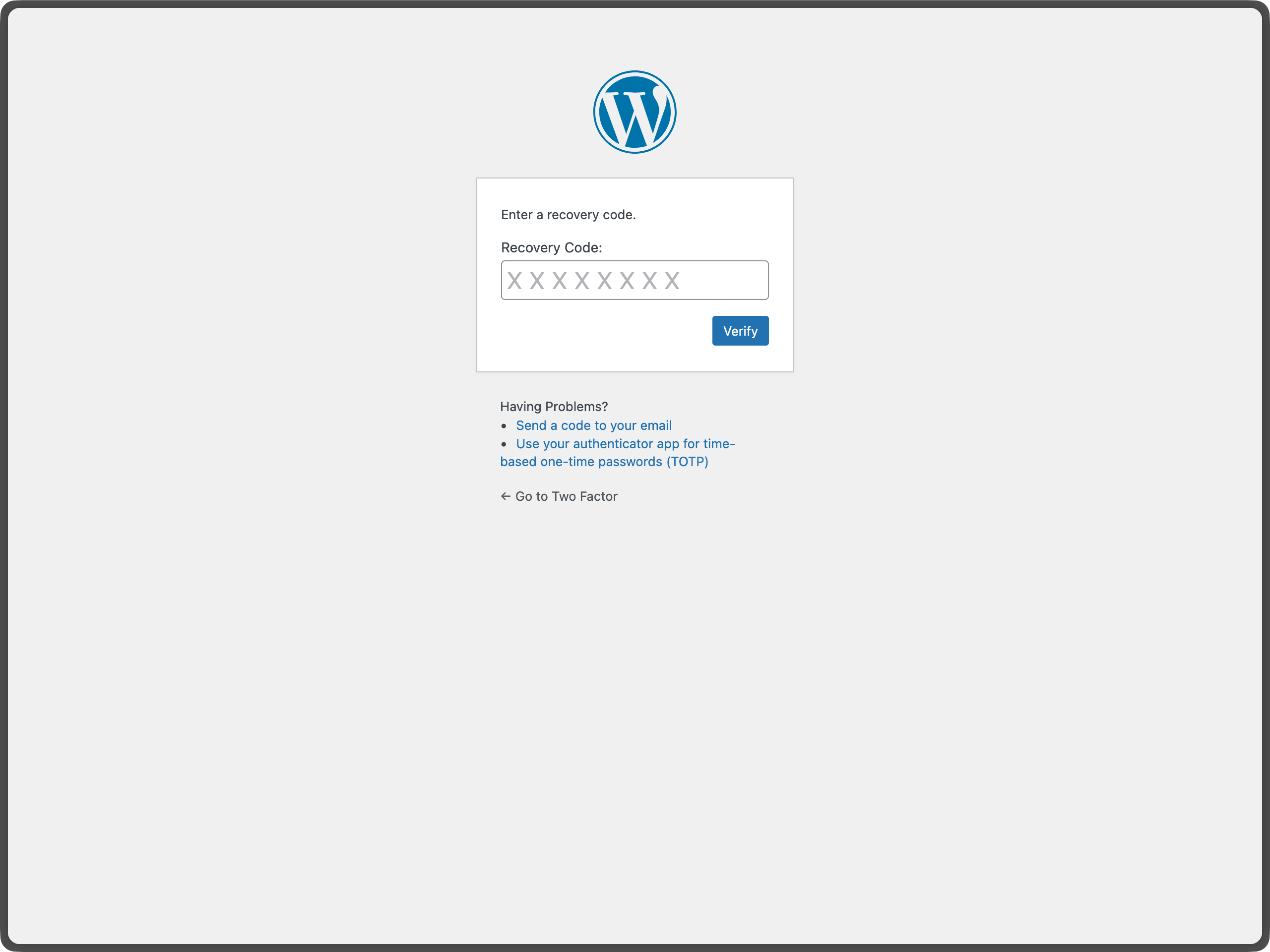
- Códigos de backup – Gere códigos de backup de uso único para emergências
- Método fictício (Dummy) – Apenas para fins de teste (requer WP_DEBUG)
- Configurar cada método: Siga as instruções de configuração para cada provedor ativado
- Definir método principal: Escolha qual método usar como sua autenticação padrão
- Salvar alterações: Clique em “Atualizar perfil” para salvar suas configurações
Para administradores do site
- Configurações do plugin: O plugin fornece uma página de configurações em “Configurações Dois fatores” para configurar quais provedores devem ser desativados em todo o site.
- Gerenciamento de usuários: Os administradores podem configurar o 2FA para outros usuários editando seus perfis
- Recomendações de segurança: Incentive os usuários a ativar métodos de backup para evitar bloqueios de conta
Métodos de autenticação disponíveis
Aplicativo autenticador (TOTP) – Recomendado
- Segurança: Alta – Senhas de uso único baseadas em tempo
- Configuração: Escaneie o código QR com o aplicativo autenticador
- Compatibilidade: Funciona com Google Authenticator, Authy, 1Password e outros aplicativos TOTP
- Melhor para: A maioria dos usuários, oferece excelente segurança com boa usabilidade
Códigos de backup – Recomendado
- Segurança: Média – Códigos de uso único
- Configuração: Gere 10 códigos de backup para acesso de emergência
- Compatibilidade: Funciona em qualquer lugar, nenhum hardware especial é necessário
- Melhor para: Acesso de emergência quando outros métodos não estiverem disponíveis
Códigos por e-mail
- Segurança: Média – Códigos de uso único enviados por e-mail
- Configuração: Automática – usa seu endereço de e-mail do WordPress
- Compatibilidade: Funciona com qualquer dispositivo capaz de receber e-mails
- Melhor para: Usuários que preferem autenticação baseada em e-mail
Chaves de segurança FIDO U2F
- Descontinuado e removido devido à perda de suporte dos navegadores.
Método fictício (Dummy)
- Segurança: Nenhuma – Sempre tem sucesso
- Configuração: Disponível apenas quando WP_DEBUG está ativado
- Objetivo: Apenas testes e desenvolvimento
- Melhor para: Desenvolvedores testando o plugin
Notas importantes
Requisito de HTTPS
- Todos os métodos funcionam tanto em sites HTTP quanto HTTPS
Compatibilidade de navegador
- Os métodos TOTP e e-mail funcionam em todos os dispositivos e navegadores
Recuperação de conta
- Sempre ative os códigos de backup para evitar o bloqueio de sua conta
- Se perder o acesso a todos os métodos de autenticação, entre em contato com o administrador do site
Melhores práticas de segurança
- Use múltiplos métodos de autenticação quando possível
- Guarde os códigos de backup em um local seguro
- Revise e atualize regularmente suas configurações de autenticação
Para mais informações sobre autenticação de dois fatores no WordPress, consulte o Guia de Segurança de Administração Avançada do WordPress.
Para mais histórico, veja este post.
Ações e filtros
Aqui está uma lista de hooks de ações e filtros fornecidos pelo plugin:
- O filtro
two_factor_providerssubstitui os provedores de dois fatores disponíveis, como e-mail e senhas de uso único baseadas em tempo. Os valores do array são nomes de classe PHP os provedores de dois fatores. - O filtro
two_factor_providers_for_usersubstitui os provedores de dois fatores disponíveis para um usuário específico. Os valores do array são instâncias de classes de provedores e o objeto de usuárioWP_Userestá disponível como o segundo argumento. - O filtro
two_factor_enabled_providers_for_usersubstitui a lista de provedores de dois fatores ativados para um usuário. O primeiro argumento é um array de nomes de classe de provedores ativados como valores, o segundo argumento é o ID do usuário. two_factor_is_required_for_userfilter controls whether two-factor authentication is required for a user. Returnfalseto bypass the two-factor flow (e.g. for trusted IP addresses). First argument is a boolean (whether the user has a primary provider configured), the second argument is theWP_Userobject.two_factor_fallback_provider_for_userfilter overrides the provider forced on when none of a user’s stored two-factor providers are still registered (e.g. after a provider plugin is deactivated). Defaults toTwo_Factor_Email. First argument is the provider classname, the second is the user ID, the third is the array of provider classnames that were stored for the user but are no longer registered. The returned provider must be registered and available to the user (is_available_for_user()), or the user is shown an error instead of being let through with a fallback.- Ação
two_factor_user_authenticatedque recebe o objetoWP_Userlogado como o primeiro argumento para determinar o usuário logado logo após o fluxo de trabalho de autenticação. - O filtro
two_factor_user_api_login_enablerestringe a autenticação para REST API e XML-RPC apenas para senhas de aplicativo. Fornece o ID do usuário como o segundo argumento. - O filtro
two_factor_email_token_ttlsubstitui o intervalo de tempo em segundos que um token de e-mail é considerado válido após a geração. Aceita o tempo em segundos como o primeiro argumento e o ID do objetoWP_Usersendo autenticado. - O filtro
two_factor_email_token_lengthsubstitui a contagem padrão de 8 caracteres para tokens de e-mail. - O filtro
two_factor_backup_code_lengthsubstitui a contagem padrão de 8 caracteres para os códigos de backup. Fornece oWP_Userdo usuário associado como o segundo argumento. - O filtro
two_factor_rest_api_can_edit_usersubstitui se as configurações de dois fatores de um usuário podem ser editadas via REST API. O primeiro argumento é o booleano$can_editatual, o segundo argumento é o ID do usuário. - Ação
two_factor_before_authentication_promptque recebe o objeto do provedor e é disparada antes da mensagem exibida no formulário de autenticação. - Ação
two_factor_after_authentication_promptque recebe o objeto do provedor e é disparada após a mensagem exibida no formulário de autenticação. - Ação
two_factor_after_authentication_inputque recebe o objeto do provedor e é disparada após o campo de entrada exibido no formulário de autenticação (se o formulário não contiver nenhum campo de entrada, a ação é disparada imediatamente apóstwo_factor_after_authentication_prompt). two_factor_login_backup_linksfiltra os links de backup exibidos no formulário de login de dois fatores.two_factor_login_nonce_failedaction which fires when a login nonce fails verification. Provides the ID of the user the nonce was presented for as the first argument, and the reason as the second:no_nonce_stored,expired, ormismatch.two_factor_log_login_nonce_failuresfilter overrides whether a failed login nonce verification is written to the PHP error log. Defaults to true forexpiredandmismatch, and false forno_nonce_stored, which any unauthenticated request can reach. Provides the user ID as the second argument and the reason as the third.
WP-CLI Commands
The plugin includes a wp two-factor WP-CLI namespace for managing two-factor authentication from the command line. All commands accept a user by ID, login, or email.
wp two-factor status <user>— Shows a user’s current 2FA status (read-only). Supports--format=json.wp two-factor list-providers— Lists all registered two-factor providers.wp two-factor enable <user> <provider>— Enables a provider for a user. Providers that require a shared secret (like TOTP) can’t be enabled this way and will point you to the profile page instead.wp two-factor disable <user> [<provider>]— Disables a single provider, or performs a full reset of all 2FA for the user when no provider is given. Both forms prompt for confirmation unless--yesis passed.wp two-factor backup-codes generate <user> [--count=<n>]— Generates a fresh set of backup codes for a user, replacing any existing ones. Defaults to 10 codes.wp two-factor unlock <user>— Clears a user’s login rate-limit/throttle without changing their 2FA configuration.
Run wp help two-factor for the full list, or wp help two-factor <command> for options and examples for a specific command.
Redirecionar após o desafio de dois fatores
Para redirecionar os usuários para uma URL específica após concluir o desafio de dois fatores, use o filtro login_redirect nativo do WordPress Core. O filtro funciona da mesma forma que em um fluxo de login padrão do WordPress:
add_filter( 'login_redirect', function( $redirect_to, $requested_redirect_to, $user ) {
    return home_url( '/dashboard/' );
}, 10, 3 );
Capturas de tela
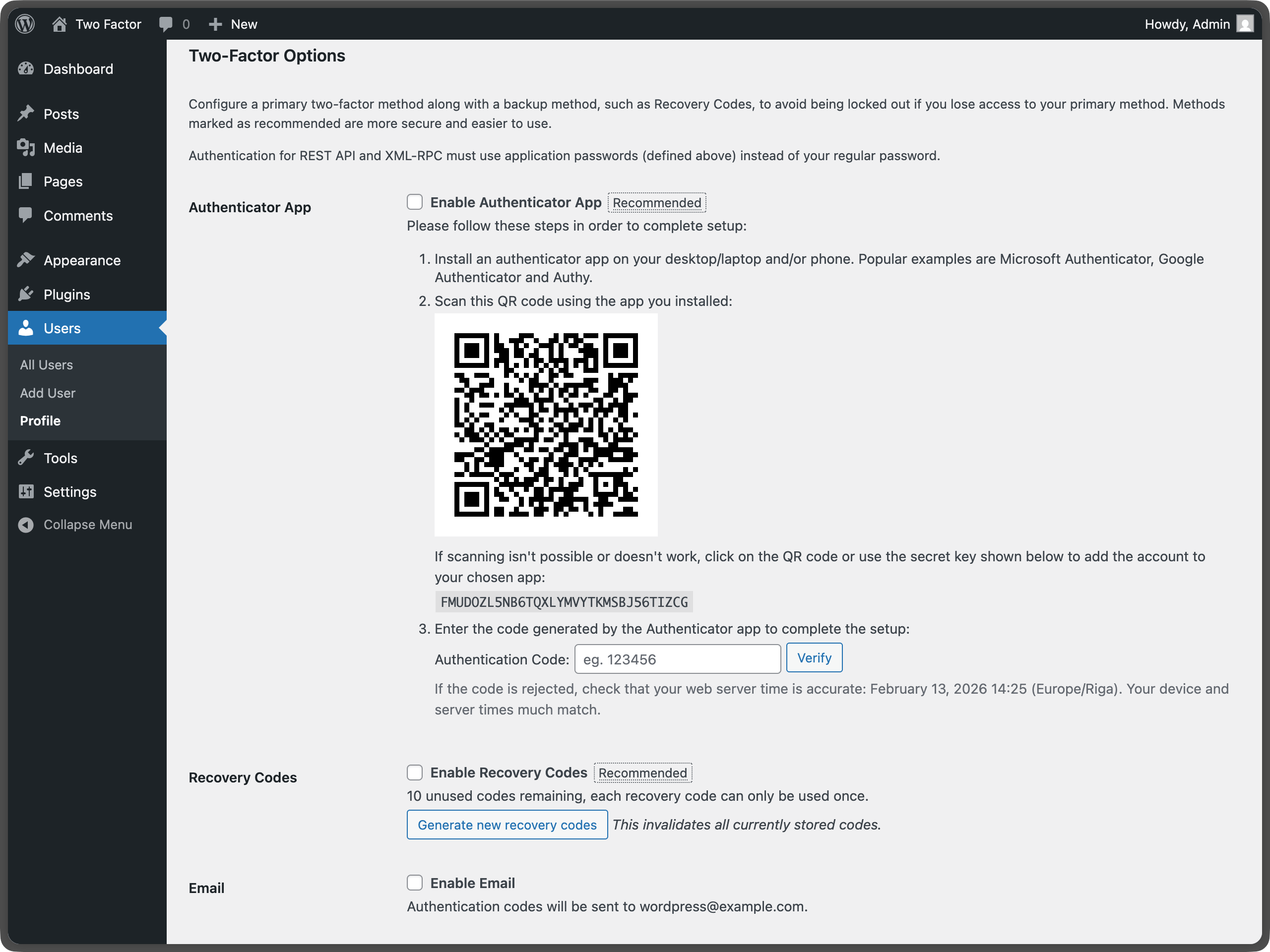
Opções de dois fatores no perfil do usuário - Mostra a área de configuração principal onde os usuários podem ativar diferentes métodos de autenticação.
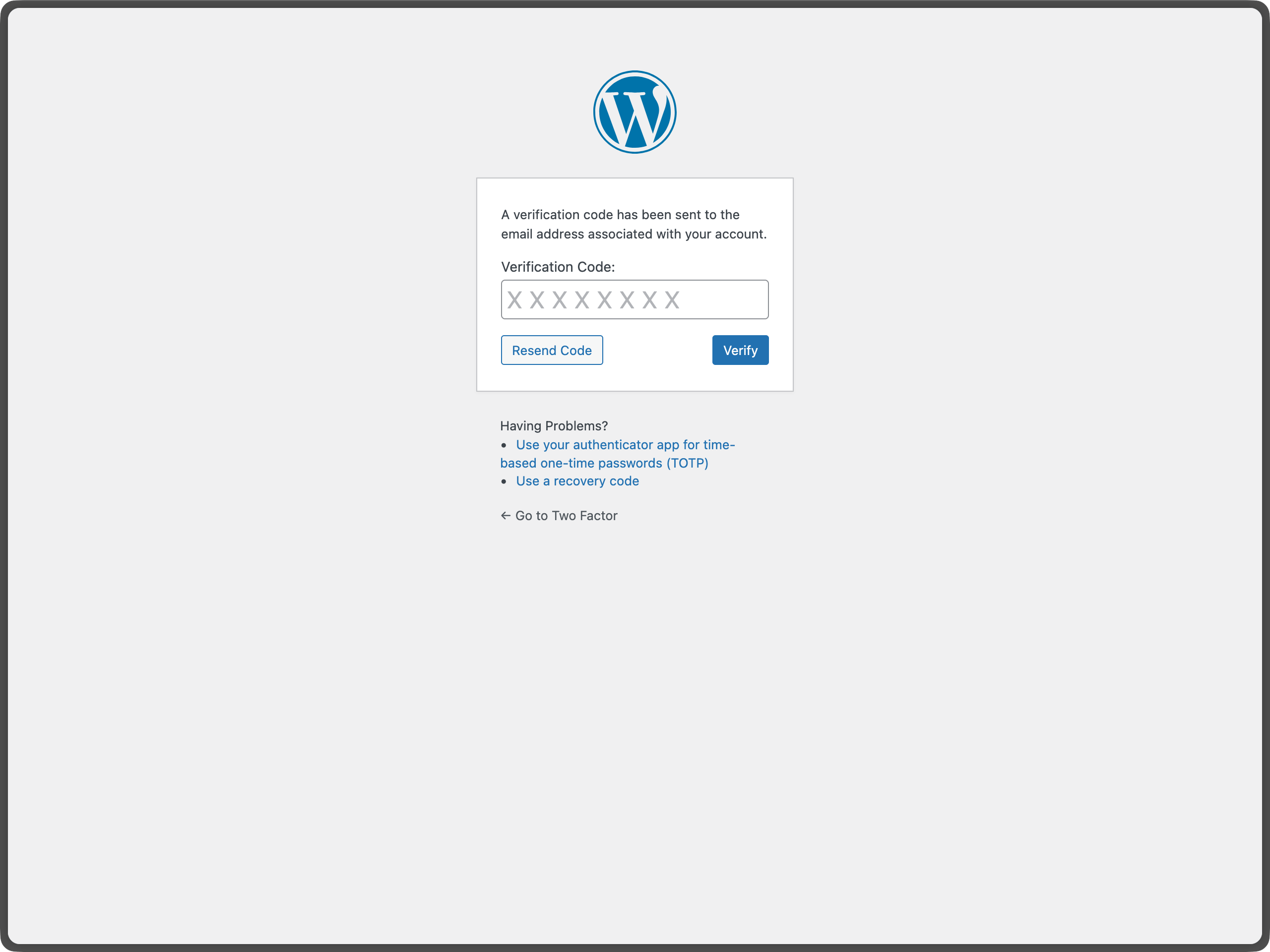
Autenticação por código de e-mail durante o login do WordPress - Mostra a tela de verificação de e-mail que aparece durante o login.
Configuração do aplicativo autenticador (TOTP) com código QR - Demonstra a geração do código QR e a inserção manual da chave para a configuração do TOTP.
Geração e gerenciamento de códigos de backup - Mostra a interface de códigos de backup para gerar e gerenciar códigos de acesso de emergência.
Plugins semelhantes


WordPress login security with brute force protection, Two-factor authentication (2FA/MFA), firewall, IP/country blocking, and login monitoring

Loginizer is a WordPress security plugin which helps you fight against bruteforce attacks.

Limit rate of login attempts, including by way of cookies, for each IP. Fully customizable.

Protect your WordPress site, pages, posts, WooCommerce products, and categories with single or multiple passwords.

LoginPress is a Custom Login Page Customizer plugin allows you to easily customize the layout of login, admin login, client login, register pages.
Do mesmo author (WordPress.org)

Ativar o editor "clássico" anterior e o estilo antigo da tela Editar Post com TinyMCE, Meta Boxes, etc. Suporta todos os plugins que estendem esta tela.

Importe posts, páginas, comentários, campos personalizados, categorias, tags e mais de um arquivo de exportação WordPress.

O plugin Gutenberg permite edição, personalização e construção de sites no WordPress. Utilize-o para testar recursos novos (beta test) antes dos lançamentos oficiais.

O Diagnóstico identifica problemas comuns e ajuda a resolver problemas de conflitos com plugins e temas.

Secure Custom Fields melhora a gestão de conteúdo com campos personalizados e opções. Ele desativa o Advanced Custom Fields para evitar erros de código duplicado.

Recursos, experimentos e capacidades de IA para WordPress.