
Slider, gallery, carousel plugin for WordPress. Build your image slider, video slider, post slider, YouTube slider, or WooCommerce product slider.

Photoswipe Masonry
Hospedagem WordPress com plugin Photoswipe Masonry Gallery
Onde posso hospedar o plugin Photoswipe Masonry Gallery?
Este plugin pode ser hospedado em qualquer provedor que tenha WordPress instalado. Recomendamos utilizar uma empresa de hospedagem de confiança, com servidores otimizados para WordPress, como o serviço de hospedagem de sites da MCO2.
Hospedando o plugin Photoswipe Masonry Gallery em um provedor de confiança
A MCO2, além de instalar o WordPress na versão mais atual para seus clientes, disponibiliza o WP SafePress, um mecanismo singular que protege e otimiza seu site conjuntamente.
Por que a Hospedagem WordPress funciona melhor na MCO2?
A Hospedagem WordPress funciona melhor pois a MCO2 possui servidores otimizados para WordPress. A instalação de WordPress é diferente de uma instalação trivial, pois habilita imediatamente recursos como otimização automática de imagens, proteção da página de login, bloqueio de atividades suspeitas diretamente no firewall, cache avançado e HTTPS ativado por padrão. São recursos que potencializam seu WordPress para a máxima segurança e o máximo desempenho.
PhotoSwipe Masonry is an image gallery plugin for WordPress built using PhotoSwipe from Dmitry Semenov. photoswipe
PhotoSwipe Masonry takes advantage of the built in gallery features of WordPress. Simply use the WordPress admin to create a gallery and insert it in the page.
You may need to adjust the size of the thumbnails to suit your theme in the settings.
Options are under Settings > PhotoSwipe
The PhotoSwipe Masonry gallery plugin allows you to:
- Upload multiple images at once
- Easily order images via drag and drop
- Add a title and caption
Via the options panel you can modify:
- Tamanho da miniatura
- Full image size
Some other features include:
- Keyboard control
- Supports multiple galleries
- Block editor support with a “PhotoSwipe Masonry Gallery” block, plus a Masonry option for the standard Gallery block
- Simple columns and spacing controls
How to add a masonry gallery (block editor)
- Edit a post or page and click the + (Add block) button.
- Search for “masonry” or “photoswipe” and choose PhotoSwipe Masonry Gallery. You can also type
/masonryin an empty paragraph. - Click Upload or Media Library and choose your images. Drag images in the gallery to reorder them.
- With the gallery selected, open the block settings sidebar (the gear icon, top right) and find the PhotoSwipe Masonry panel.
- Set Columns (1-8) and Spacing (0-60px).
- Save or update the page. Visitors can click any image to open it in the PhotoSwipe lightbox.
Turn an existing Gallery block into a masonry gallery
- Select the Gallery block. If a single image is selected, click the “Select parent” arrow in the toolbar to select the whole gallery.
- In the block settings sidebar, open the PhotoSwipe Masonry panel.
- Turn on Masonry layout, then set Columns and Spacing.
You can also select a Gallery block, click its icon in the toolbar and transform it into a PhotoSwipe Masonry Gallery. To go back to a standard gallery, turn Masonry layout off.
Shortcode galleries (classic editor)
Create a gallery with the Add Media button, or add a shortcode such as [gallery ids="1,2,3" columns="3"]. Existing shortcode galleries keep working as before and use the thumbnail settings under Settings > PhotoSwipe.
Good to know
- Masonry galleries show two columns on screens narrower than 650px.
- Masonry galleries always open images in the PhotoSwipe lightbox, so the Gallery “Link to” setting is ignored.
- Images must come from the Media Library. A gallery that contains an image inserted from a URL shows as a standard Gallery.
- Image captions are shown under thumbnails when “Show captions on thumbnails?” is enabled under Settings > PhotoSwipe. Captions always appear in the lightbox.
See a demo here
Capturas de tela
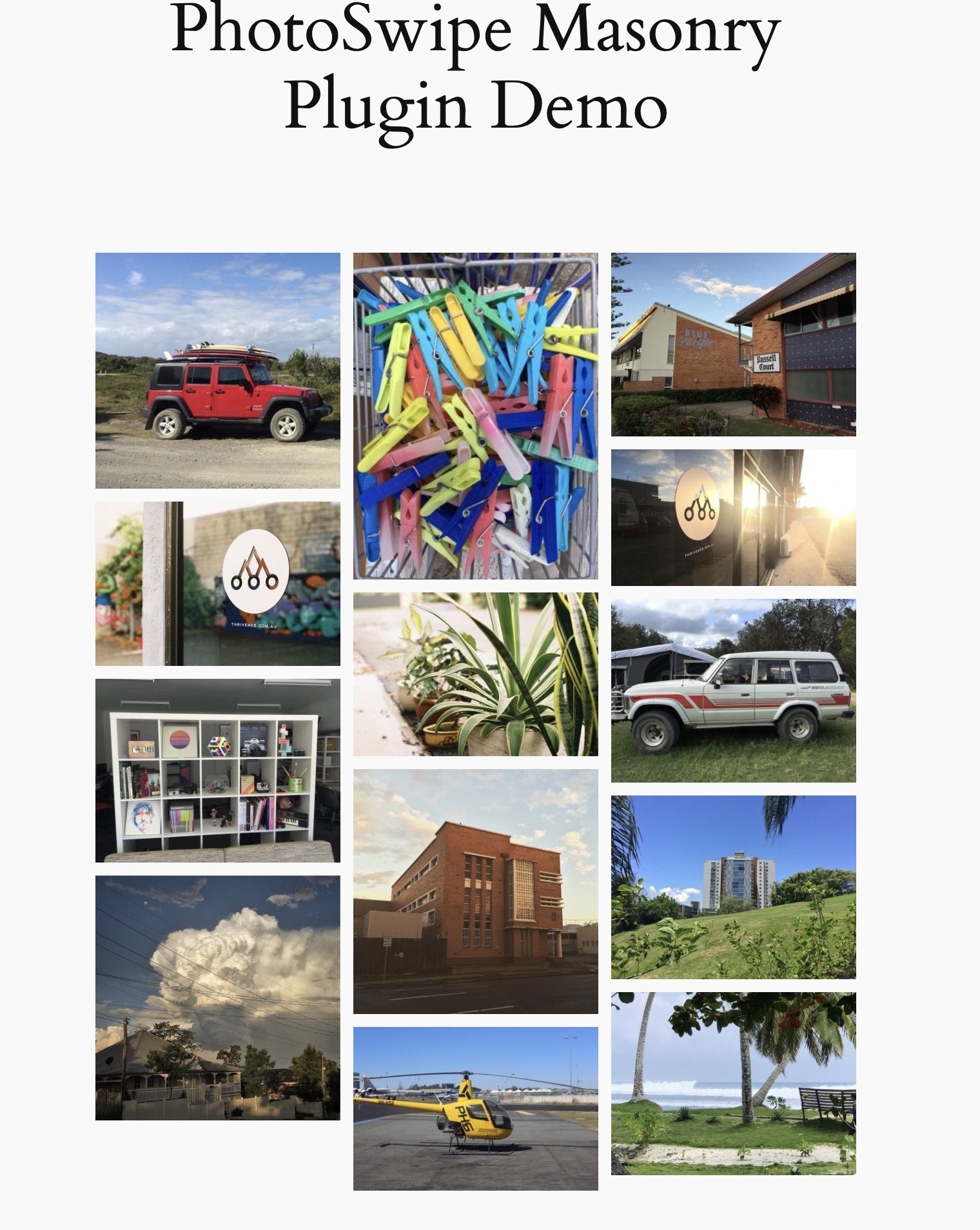
Masonry gallery with three columns, varied image heights and white gutters
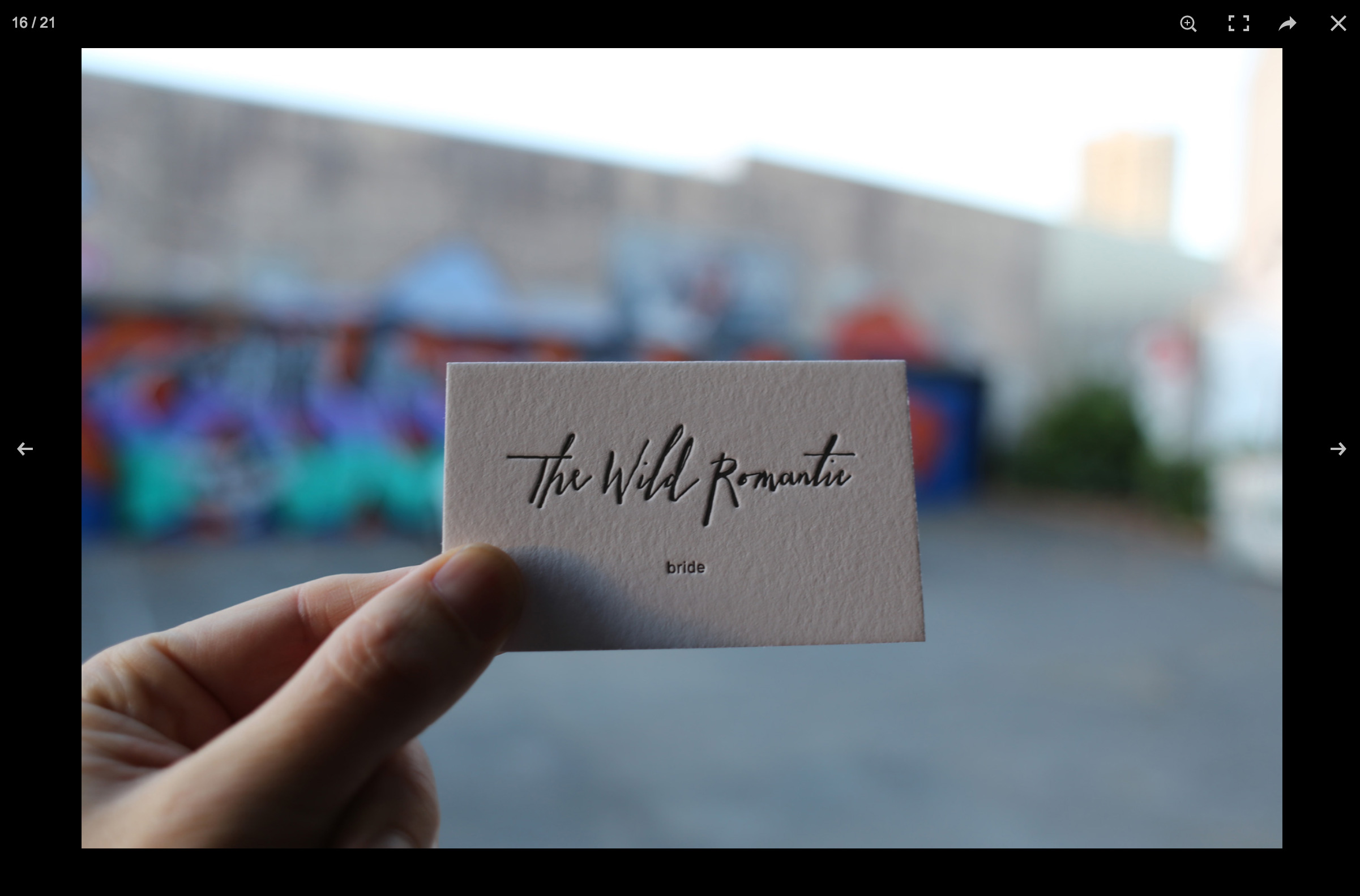
Screenshot Popup layout
Plugins semelhantes


The most popular gallery plugin that lets you create galleries and albums in seconds.

Formerly Easy Fancybox. The most popular WordPress lightbox plugin. Simple, fast, and responsive. Opens images, videos, PDFs, and custom popups.

The most popular lightbox plugin and responsive gallery builder for WordPress.

Create responsive photo, image and masonry galleries in WordPress with FooGallery, plus carousel, lightbox, albums, SEO and video gallery support.

The fastest drag & drop photo gallery plugin. Create stunning image galleries, albums, video galleries & lightbox displays in minutes — no coding!
Do mesmo author (THRIVE - Web Design Gold Coast)

A WooCommerce product gallery built with PhotoSwipe and Slick carousel — responsive, touch-friendly, and easy to customise.

A simplified version of Photospace featuring a responsive only layout.