
Block excessive login attempts and protect your site against brute force attacks. Simple, yet powerful tools to improve site performance.

Login or Logout Menu Item
Hospedagem WordPress com plugin Login or Logout Menu Item
Onde hospedar o plugin Login or Logout Menu Item?
Este plugin pode ser hospedado em qualquer servidor que possua WordPress instalado. Recomendamos utilizar um provedor de hospedagem de confiança, com servidores adaptados para WordPress, como o serviço de hospedagem WordPress da MCO2.
Hospedando o plugin Login or Logout Menu Item em um provedor confiável
A MCO2, além de instalar o WordPress na versão mais nova para seus clientes, oferece o plugin WP SafePress, um sistema singular que protege e otimiza seu site simultaneamente.
Por que a Hospedagem WordPress funciona melhor na MCO2?
A Hospedagem WordPress funciona melhor pois a MCO2 possui servidores otimizados para WordPress. A instalação de WordPress é diferente de uma instalação trivial, pois habilita imediatamente recursos como otimização automática de imagens e fotos, proteção da página de login, bloqueio de atividades maliciosas diretamente no firewall, cache avançado e HTTPS ativado por padrão. São plugins que potencializam seu WordPress para a máxima segurança e o máximo desempenho.
With this plugin you can easily add a dynamic login/logout menu item to any menu on your WordPress site. The menu item will change based on whether the current user is logged in or logged out. You can also set a specific login page url, login redirect url and a logout redirect url.
Thanks to Juliobox for his prior efforts on the BAW Login/Logout Menu plugin which this is derived from
CONFIGURE SETTINGS
After installing and activating the plugin, you can find the settings in your dashboard under: Settings > Login or Logout
Login Page URL – This should be the URL to the page where your users will login at. For most wordpress sites this will be /wp-login.php but if you’re using a membership plugin like MemberPress, it might be something like /login/ instead.
Login Redirect URL – This is the URL you would like your users to be redirected to after they’ve successfully logged in. You can set it to / to take them to the home page after logging in. If you’re using a membership plugin like MemberPress, you might want to use /account/ instead. NOTE: Some plugins may override this if they are configured to redirect your users somewhere else during login.
Logout Redirect URL – This is the URL you would like your users to be redirected to after they click the Logout link from this menu item. Use a / to redirect them to the home page, or you might want to redirect them back to the login page at /login/ or /wp-login.php etc.
ADD ITEM TO MENU
In your dashboard visit Appearance > Menus.
Then at the top right of that page click the Screen Options button and ensure that Login/Logout checkbox is checked.
Then select a menu to edit, or create a new menu if you don’t already have one.
In the left sidebar find Login/Logout and click the checkbox next to Login|Logout and then click Add to Menu.
You can now drag the menu item wherever you’d like it to appear in your menu. The URL in the menu settings must be left at #lolmiloginout# but you can change the Navigation Label if you’d like it to say something else. Just ensure that the | is there in the label separating the two words.
Now save your menu. That’s it!
BLOCK EDITOR (NAVIGATION BLOCK)
If you’re using the block editor’s Navigation block:
- Add or edit a Navigation block on your page or in the Site Editor
- Click the (+) to add a new link
- In the search field, type “login” or “logout”
- Select “Login|Logout” from the suggestions
- The link will automatically show “Login” to logged-out users and “Logout” to logged-in users
You can also manually type #lolmiloginout# as the URL if you prefer.
Troubleshooting
After logging in, menu still shows “Login” or Vice-Versa – This is most commonly caused by caching. If you’re using a caching solution such as Cloudflare, WPRocket, or others, be sure that caching is disabled for logged in users, and disable browser caching options as well.
Login is redirecting users somewhere other than my settings – Many times other plugins will have their own login redirect handling which overrides this plugin’s, such as MemberPress for example. In this case, the other plugins will need to be configured to redirect the user where you’d like them to go.
Capturas de tela
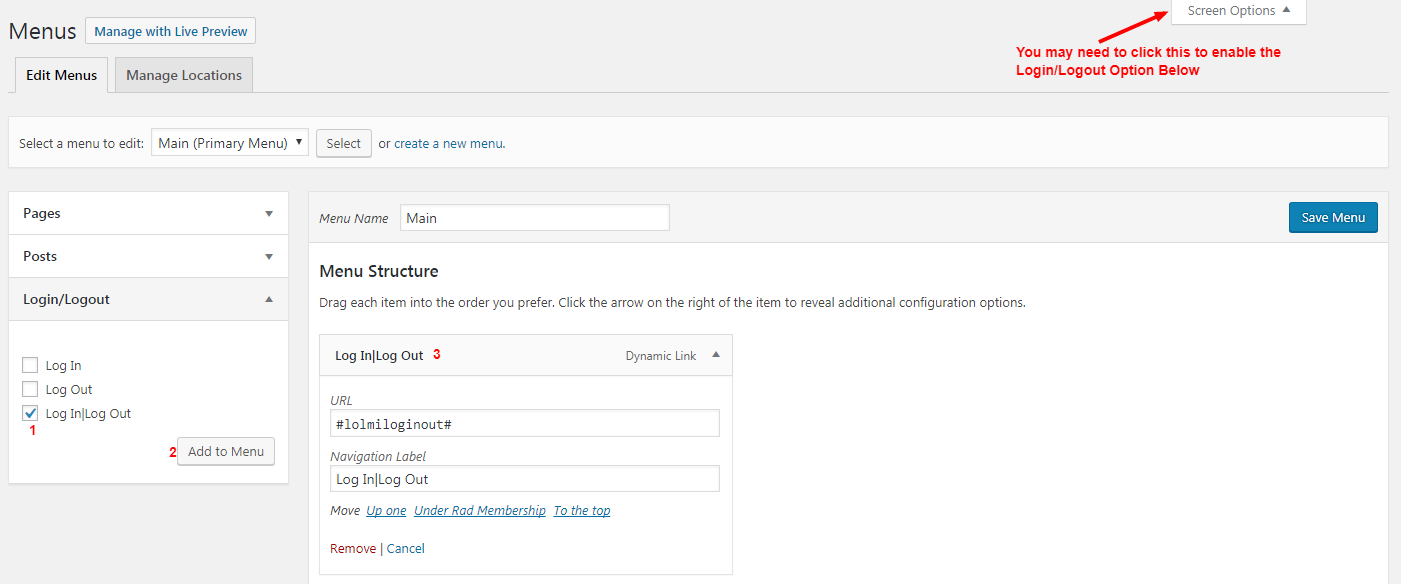
Login or Logout Menu Item

Login or Logout Menu Item - Settings
Plugins semelhantes


Loginizer is a WordPress security plugin which helps you fight against bruteforce attacks.

Adds breadcrumb navigation showing the visitor's path to their current location.

Limit rate of login attempts, including by way of cookies, for each IP. Fully customizable.

An easy to use mega menu plugin. Written the WordPress way.

Lets you edit the WordPress admin menu. You can re-order, hide or rename menus, add custom menus and more.