Retired on WordPress 5.5 and newer. Legacy jQuery image lazy loading remains available for older WordPress installations.

Animate It!
Hospedagem WordPress com plugin Animate It!
Onde devo hospedar o plugin Animate It!?
Este plugin pode ser hospedado em qualquer servidor que possua WordPress instalado. Recomendamos fortemente utilizar um provedor de hospedagem confiável, com servidores adaptados para WordPress, como o serviço de hospedagem de sites da MCO2.
Hospedando o plugin Animate It! em um provedor seguro
A MCO2, além de instalar o WordPress na versão mais atual para seus clientes, fornece o plugin WP SafePress, um sistema exclusivo que assegura e melhora seu site conjuntamente.
Por que a Hospedagem WordPress funciona melhor na MCO2?
A Hospedagem WordPress funciona melhor pois a MCO2 possui servidores otimizados para WordPress. A instalação de WordPress é diferente de uma instalação trivial, pois habilita imediatamente recursos como otimização automática de imagens e fotos, proteção da página de login, bloqueio de atividades suspeitas diretamente no firewall, cache avançado e HTTPS ativado por padrão. São recursos que potencializam seu WordPress para a máxima segurança e o máximo desempenho.
Add cool CSS3 animations to your content.
Demo | Documentation | Class Generator
Some of the Key features Include:
- Allowing user to apply CSS3 animations on Post, Widget and Pages.
- 50+ Entry, Exit and Attention Seeker Animations.
- Capability to apply animation on Scroll.
- Capability to add different scroll offset on individual animation blocks.
- Capability to apply animation on Click.
- Capability to apply animation on Hover.
- Providing delay feature in animation to create a nice animation sequence.
- Providing feature to control the duration for a more precise animation.
- Providing a button in the editor to easily add an animation block in the article or post.
- Allow user to add animation on WordPress widgets. Use Class Generator to generate the required animation classes.
- Allow user to apply animation infinitely or any fixed number of times.
- Option to add custom CSS classes to individual animation block.
- Options to enable or disable animations on Smartphones and Tablets.
- Spanish and German language support. Thanks to Santiago Marrone, Christian Herrmann
- Custom Animate It! block to apply animations on other Gutenberg blocks.
All the CSS3 animations are from Animate.css and Animo.js
Capturas de tela
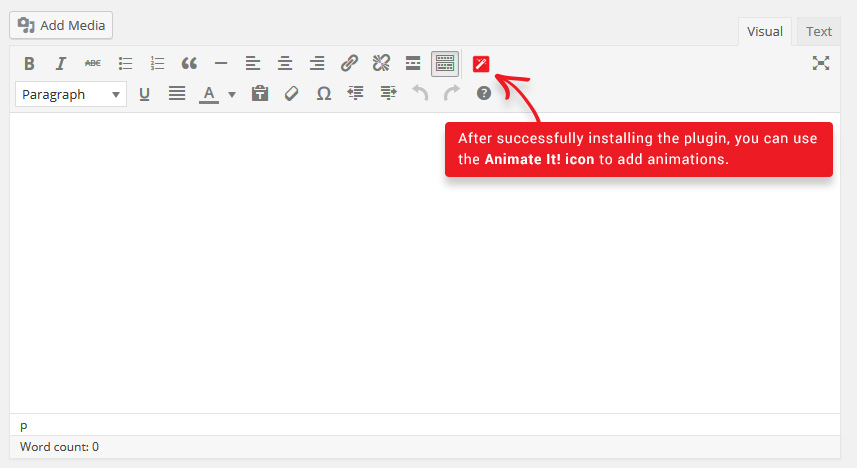
Animate Button - Add animation blocks in WordPress Post and Pages using the Animate It! button.
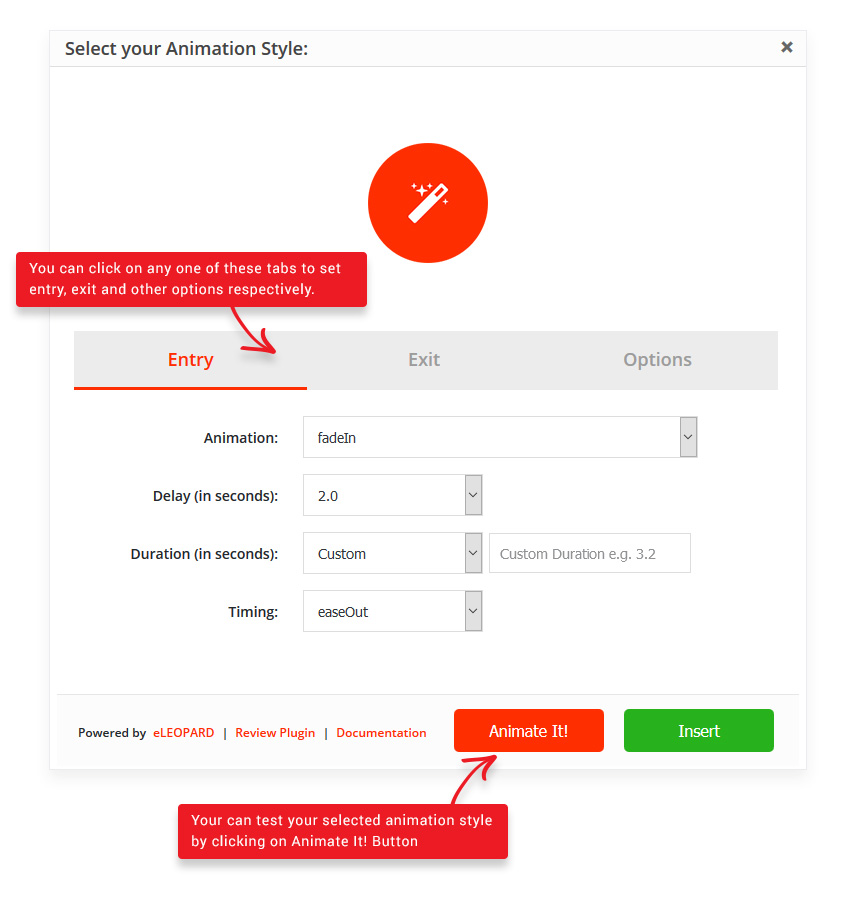
Select Animation - After clicking Animate It! button you will get a screen to choose animation.
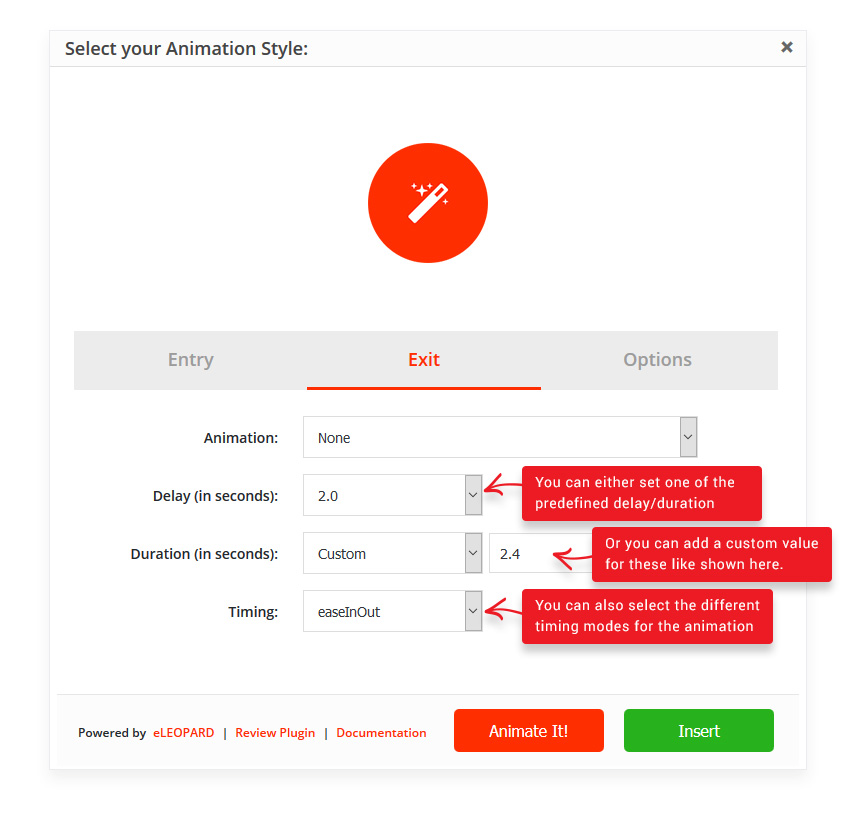
Entry Exit Animation - Select and configure the entry and exit animations.
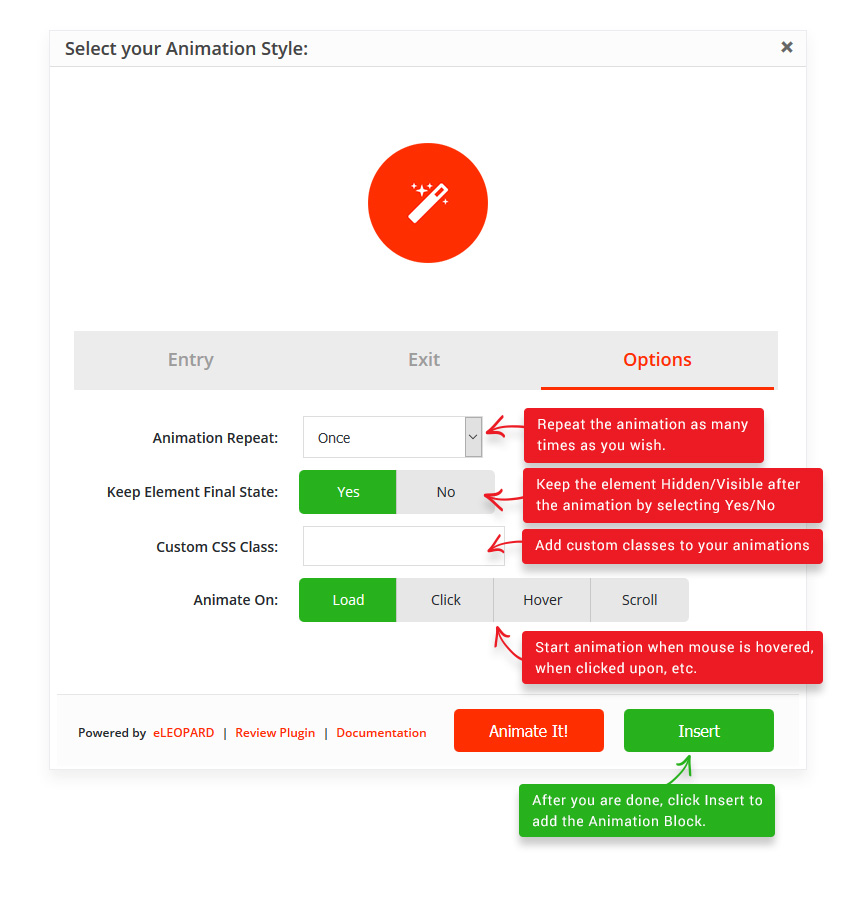
Other Options - Select other options like iteration count etc.
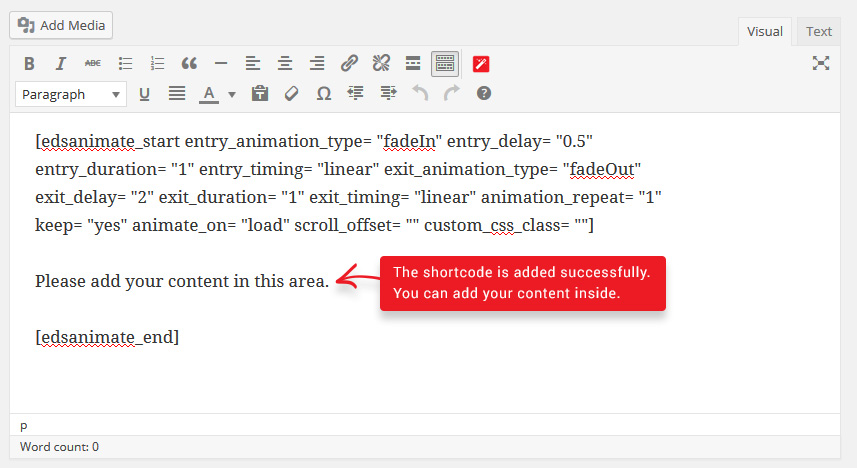
Update Dummy Content - Update the content of the block as per your requirement. You can copy and paste the same in Text Widget also.
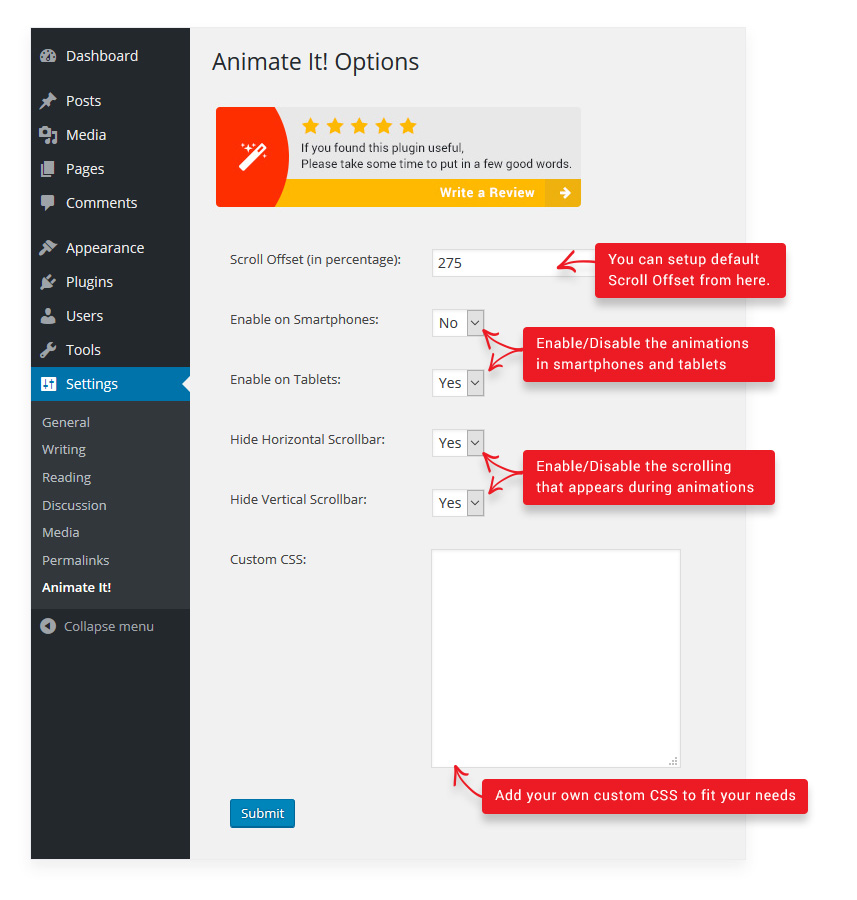
Settings - Options for Animate It! under Settings-> Animate It! menu in the admin area.
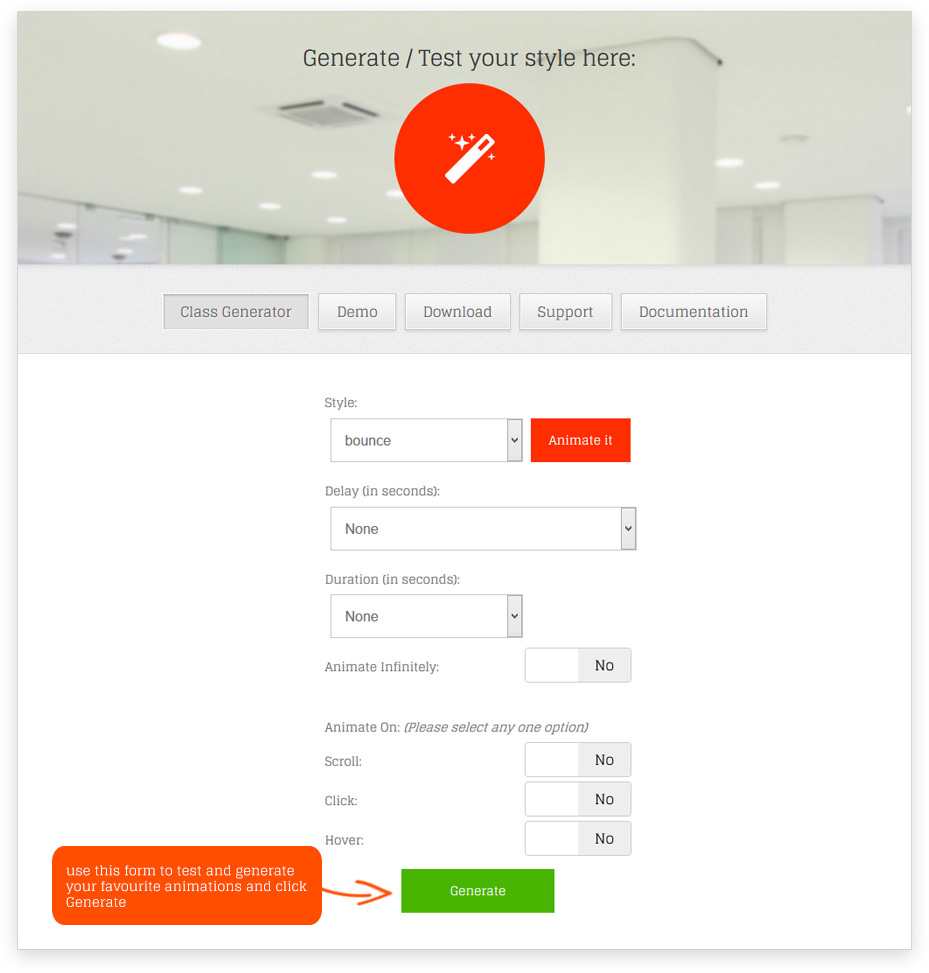
Class Generator - Class Generator to generate required Animation Classes for Widgets.
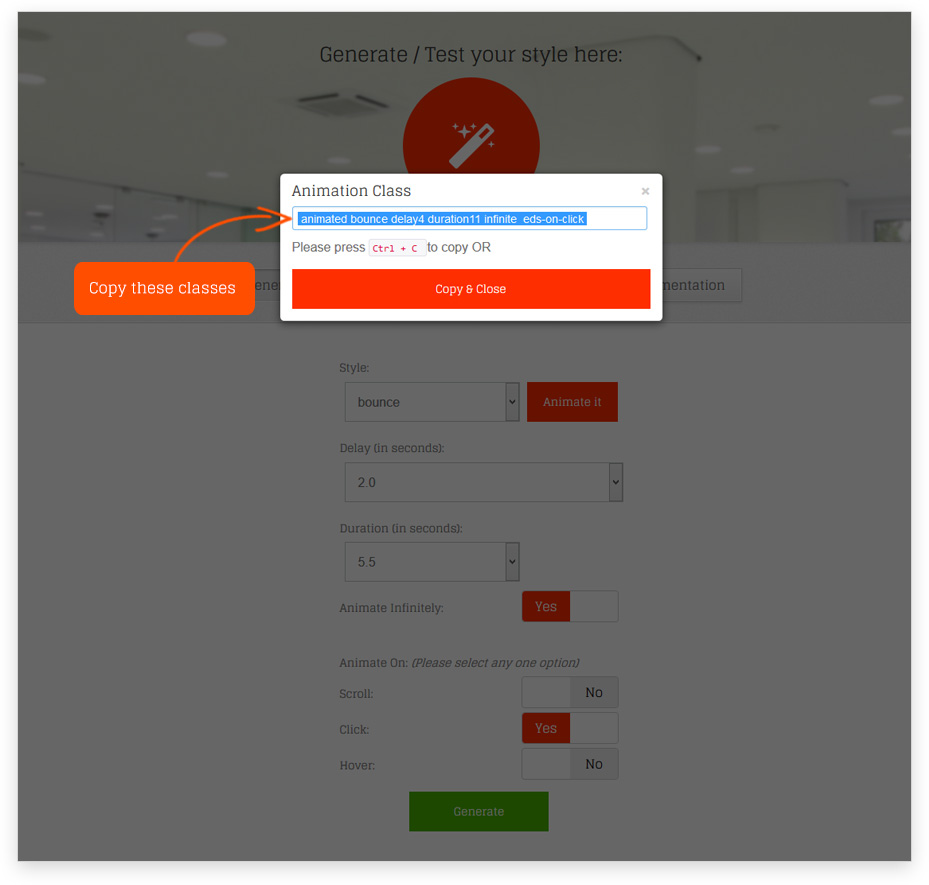
Copy Generated Classes - Copy the generated classes.

Apply on Widgets - Apply the copied classes by pasting it in the 'Animate It! Classes' text box under the widget settings.
Plugins semelhantes

Do mesmo author (eleopard)

Show Behance Projects to Your WordPress Website